
This guide explains how to connect your Cashmere account to the Claude application so Claude can securely access the premium content collections you are licensed for.
Prerequisites
Before starting, make sure you have:
-
A Cashmere account
Sign up at: https://cashmere.io/accounts/signup
-
An active content license
You must already have access to one or more Cashmere collections. Claude can only use collections you are licensed for.
Step-by-Step Setup
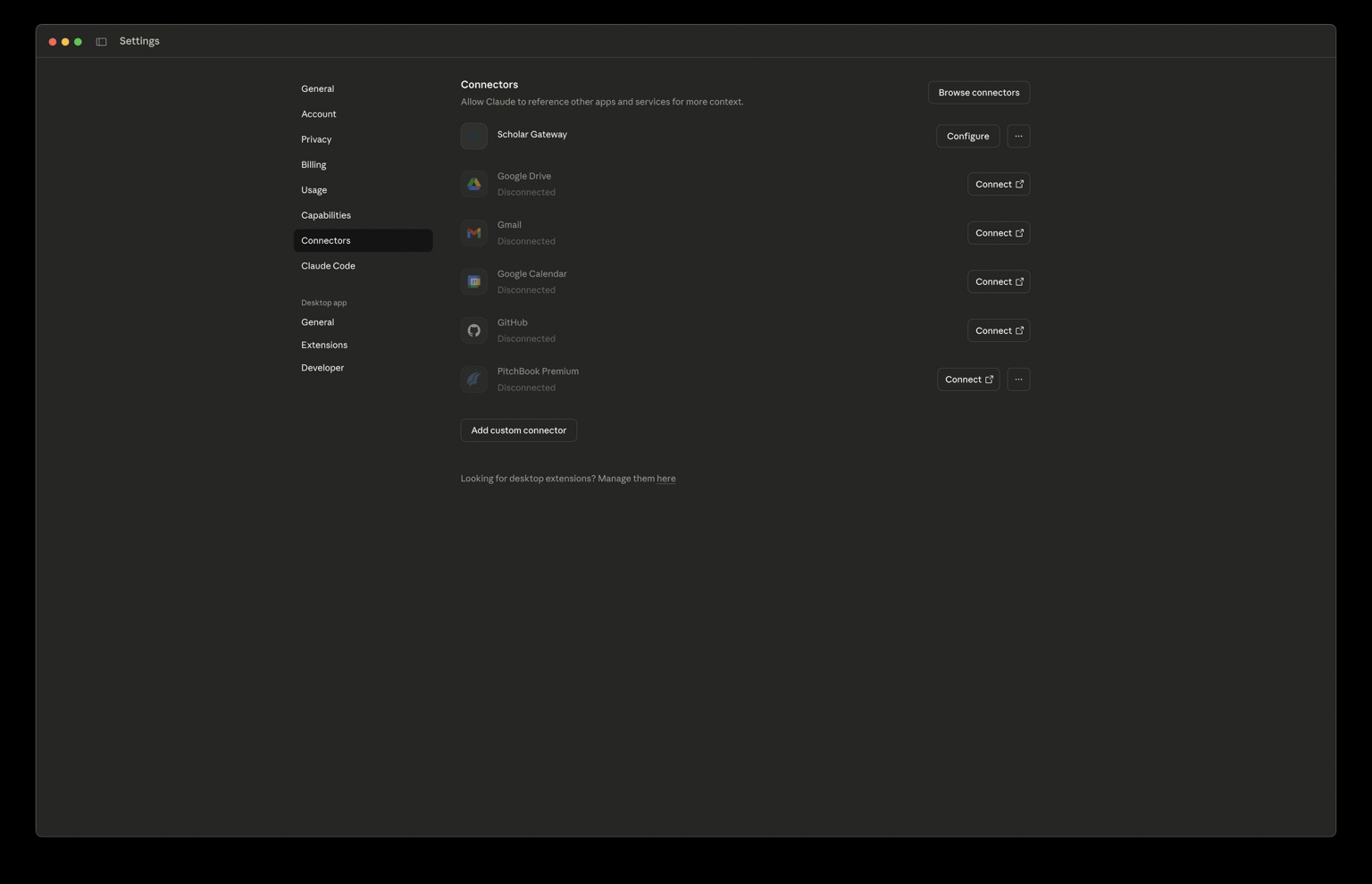
1. Open Claude and navigate to Connectors
- Open the Claude application (web or desktop).
- Go to Settings → Connectors.
- Click Add custom connector.
2. Add the Cashmere MCP connector
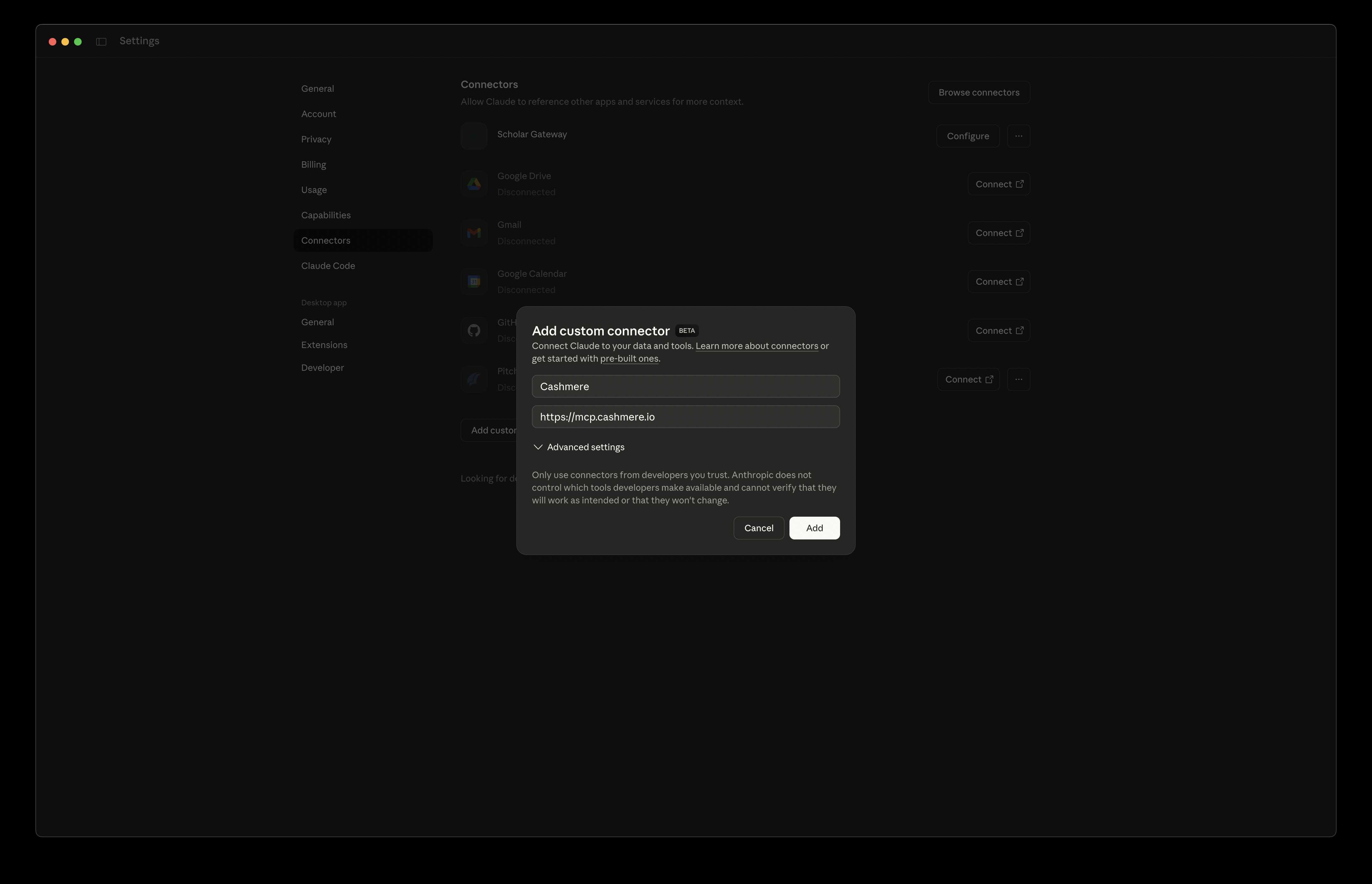
Enter the following values:
- Name: Cashmere
- Remote MCP server URL:
https://mcp.cashmere.io
Click Add.
3. Connect Cashmere
- Cashmere will now appear in your list of connectors.
- Click Connect next to Cashmere.
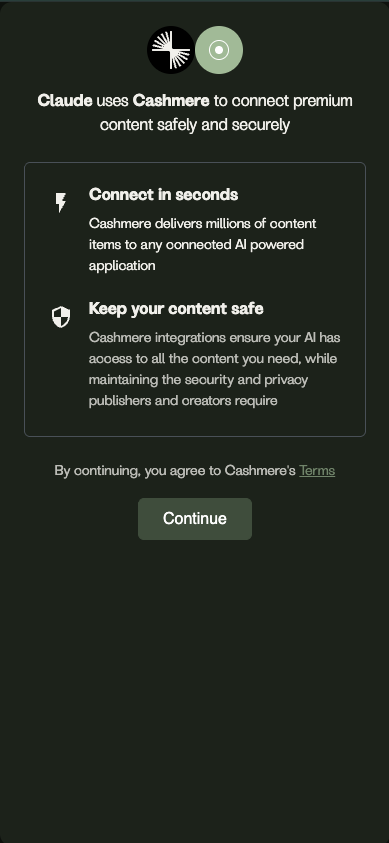
4. Log in to Cashmere
- A new window will open.
- Log in using your Cashmere account credentials.
5. Select your licensed collections
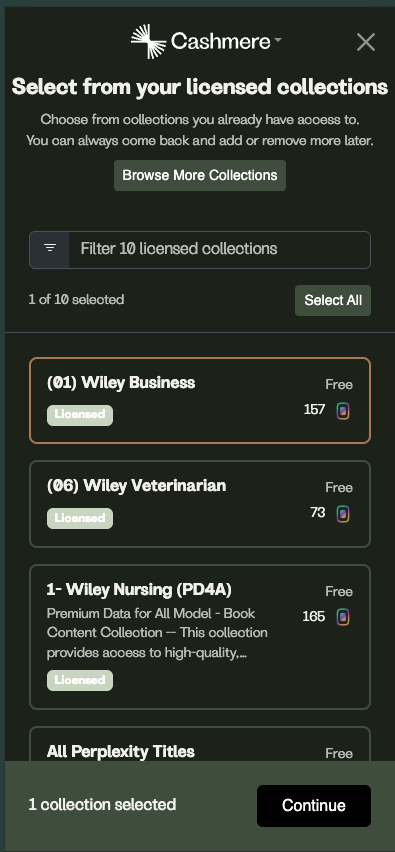
- You will see a list of all Cashmere collections you already have access to.
- Select the collections you want Claude to be able to use.
- Click Continue, then Authorize.
Some publisher MCP servers skip this step and grant their own collections. If that is the case, sign-in connects the server right away.
Verify the Connection
Once authorization is complete, Cashmere is connected to Claude.
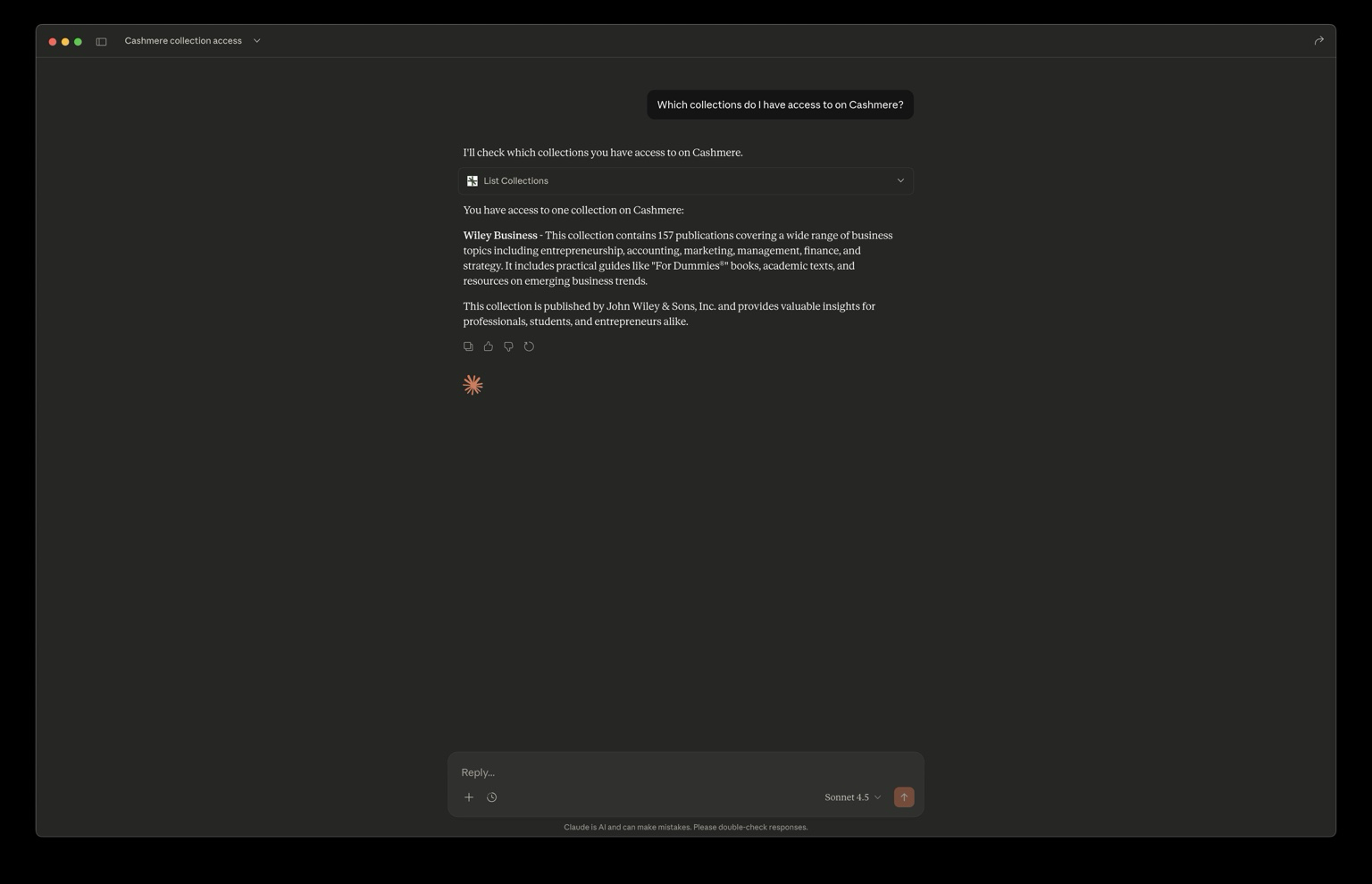
To confirm, ask Claude:
Which collections do I have access to on Cashmere?
Claude should return the list of collections you selected during setup.
Using Cashmere in Claude
When you want Claude to use your licensed content:
- Explicitly ask Claude to use Cashmere
- Specify the collection(s) you want included
- State your question or task
Example:
Cashmere Wiley Business: Provide guidelines on executive hiring
Claude will only use the collections you authorized and only within the scope of your license.
Notes
- You can manage connected collections at any time via Settings → Connectors.
- Claude cannot access content you are not licensed for.
- All access is handled securely and in accordance with publisher requirements.